How to invite your farm team and choose what each person can do
Invite a farm manager or worker to your AgriSync farm account. Pick the right role, change roles, resend or cancel invites, and remove someone straight away.
Last checked against gov.uk
- Written by
- The AgriSync team
- Published
- Reading time
- 3 minutes
In short
In AgriSync, open Team and enter the person's Email. Pick a Role (Farm owner, Farm manager or Worker) and press Send invite. They get an email link that works for 72 hours. Only farm owners can invite, change roles or remove people. For your agronomist, use Advisers instead. They see your farm without joining your team.
What you need
- To be a farm owner on your AgriSync account
- The email address of the person you're inviting
Steps
- 1
Open Team
In the menu, under Account, choose Team.
- 2
Fill in the invitation
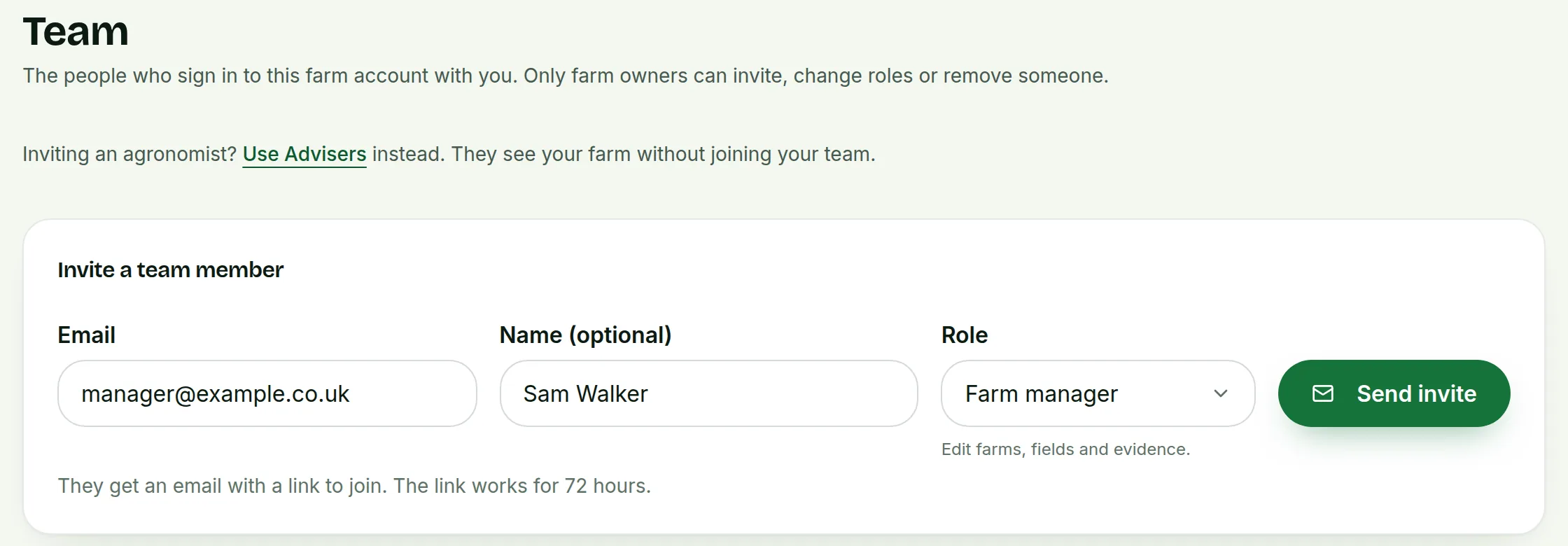
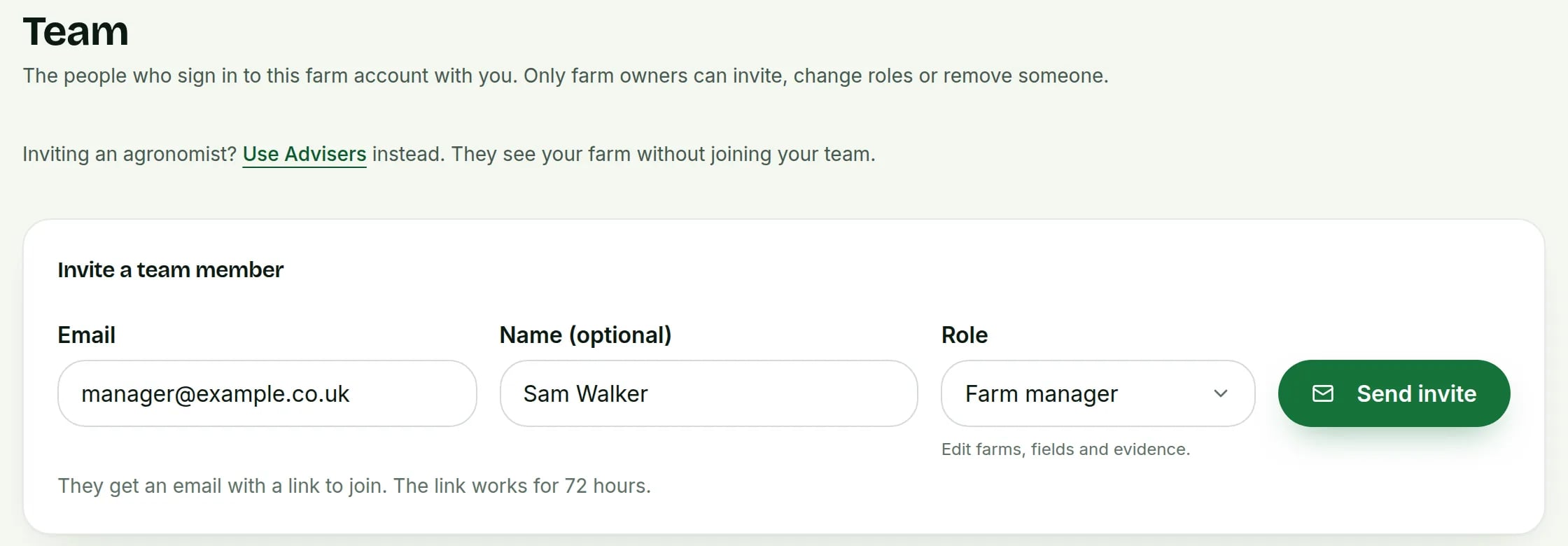
Under Invite a team member, enter their Email. You can add their Name (optional) too.
 Tap to see the whole screen(opens the full-size picture)
Demo farm in the AgriSync test environment. - 3
Choose their role
Pick a Role. A short note under the box says what the role can do. Farm manager is picked to start with.
- 4
Send it
Press Send invite. They get an email with a link to join. The link works for 72 hours.
- 5
They accept
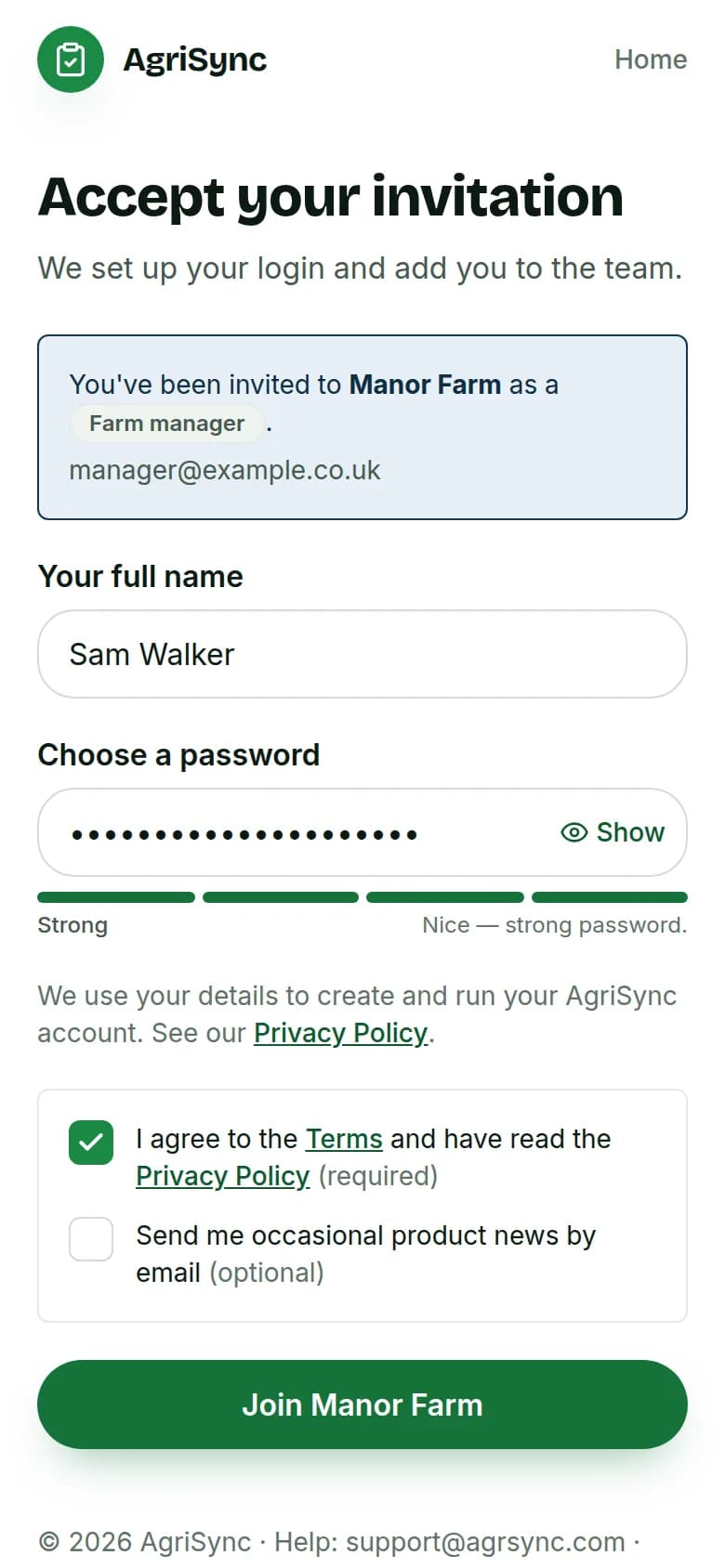
They open the link and see Accept your invitation. They enter Your full name and choose a password. Then they press Join and your farm account's name. They now appear under Active members.
Demo farm in the AgriSync test environment. - 6
Manage invitations
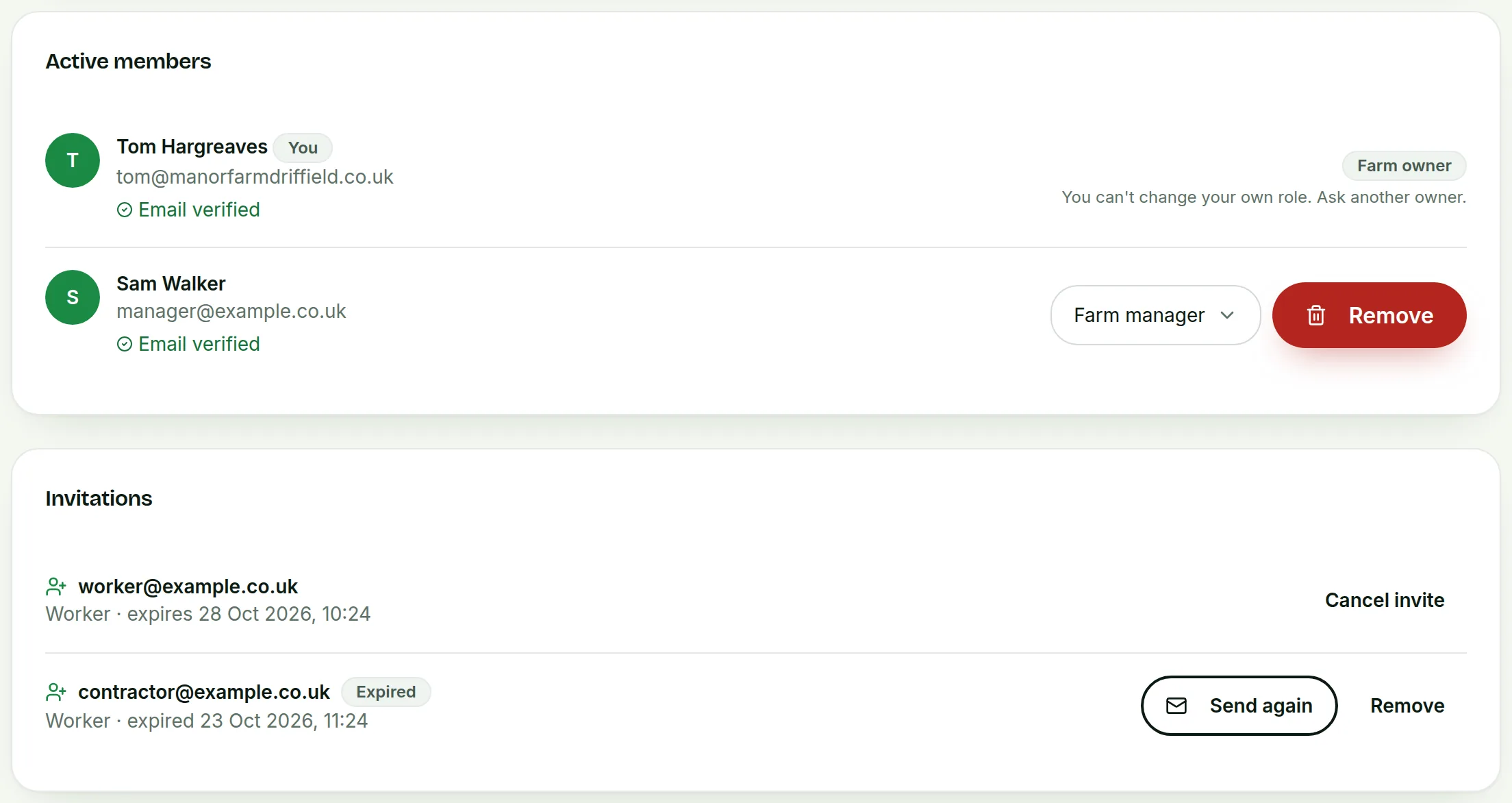
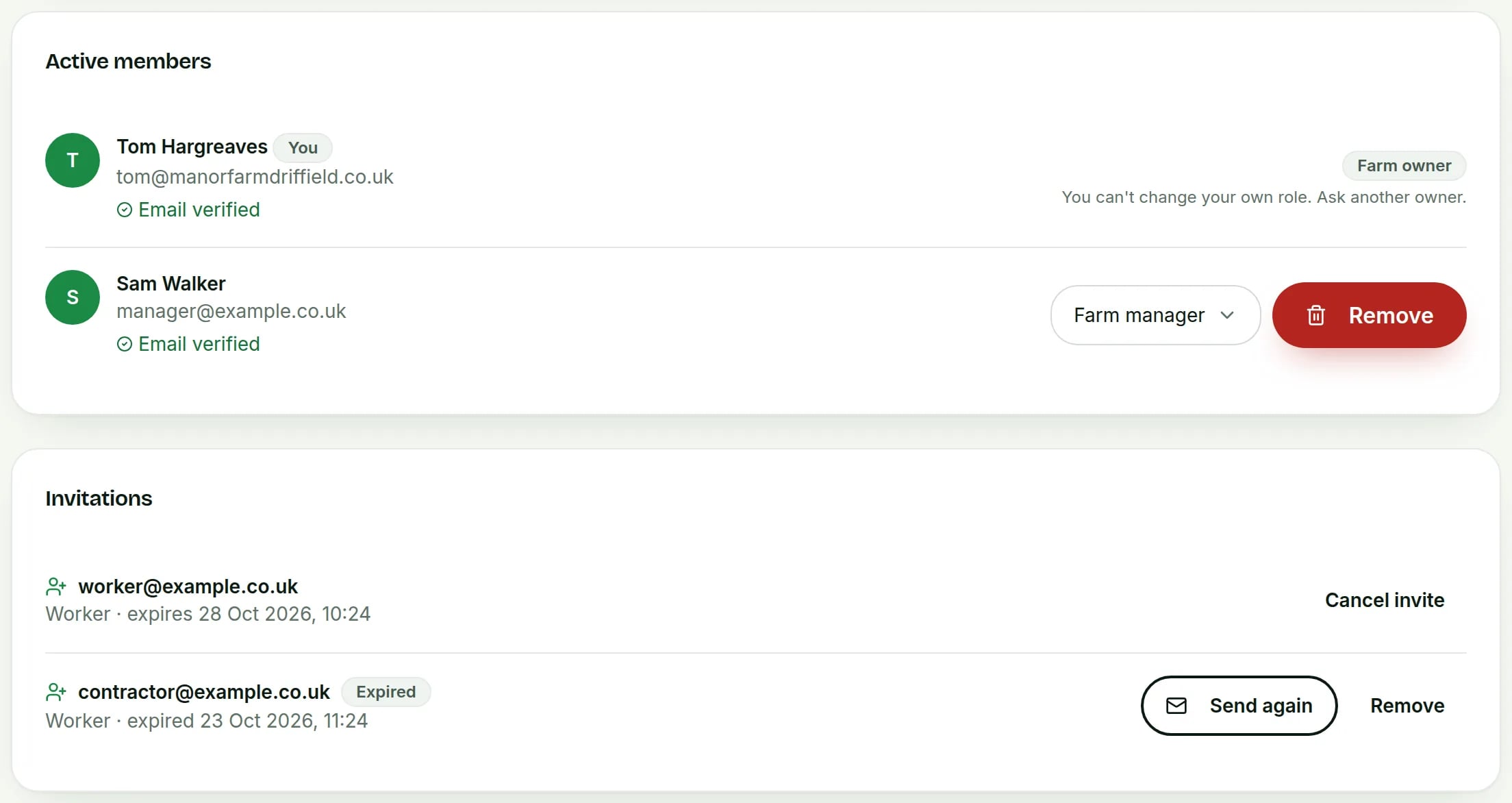
Under Invitations, press Cancel invite to stop the link working straight away. An invite that runs out shows Expired. Press Send again for a fresh link, or Remove to clear it.
 Tap to see the whole screen(opens the full-size picture)
Demo farm in the AgriSync test environment. - 7
Change a role or remove someone
Under Active members, pick a new role from the list next to their name. It saves straight away. To take away their access at once, press Remove, then Remove member. You can't change your own role. Ask another owner.
Which role should I choose?
| Role | What the Team page says | Good for |
|---|---|---|
| Farm owner | Full access. Can invite people and manage the plan. | You and any business partner who runs the account |
| Farm manager | Edit farms, fields and evidence. | A manager who runs the day-to-day records |
| Worker | Take photos and view fields. | Staff who take field photos |
| Agronomist | Can look and leave notes, not change things. | An agronomist who works for your farm. They see the whole farm read-only and use the Agronomy page to leave notes and sign off plans, in the web app. For an outside agronomist, use Advisers |
Who can do what?
| Task | Farm owner | Farm manager | Worker |
|---|---|---|---|
| Add or edit farms, fields and crops | Yes | Yes | No |
| Add evidence photos | Yes | Yes | Yes |
| Delete evidence photos | Yes | Yes | No |
| Tick SFI actions on the SFI payments page | Yes | Yes | No |
| Post loads and sign load passports | Yes | Yes | No |
| Record sprays, fertiliser and other field jobs | Yes | Yes | Yes |
| Plan field jobs and accept an adviser's advice | Yes | Yes | No |
| Delete farms or fields | Yes | No | No |
| Give consent to fetch fields from the RPA | Yes | No | No |
| Share a farm with an agronomist | Yes | No | No |
| Invite, change roles or remove team members | Yes | No | No |
Common questions
The invitation link has expired. What now?
Links work for 72 hours. Under Invitations, remove the old one and send a new invite.
Can a farm manager invite people?
No. Only farm owners can invite, change roles or remove someone. If someone else needs to, make them a farm owner.
Does each team member need their own login?
Yes. Everyone signs in with their own details. So you can remove one person and the rest of the team carries on. Each person can use the web app or the AgriSync phone app.
Keep going
How-to guides
Try it on your own farm
Free during early access. Start on your own, or we'll phone you and set up your fields with you.