How to take an evidence photo that proves where and when
Take a field photo with AgriSync on your phone. It's checked against the field outline and saved with time, place and a tamper-proof fingerprint for SFI.
Last checked against gov.uk
- Written by
- The AgriSync team
- Published
- Reading time
- 3 minutes
In short
To take an SFI evidence photo in AgriSync, stand in the field. Open Evidence vault on your phone and press Add photo or file. Choose the farm and field. Press Take photo and allow location. Add a caption and press Upload. AgriSync checks the photo was taken inside that field.
What you need
- A phone with a camera. The Android app can wait for signal. The web app in a browser needs signal to upload
- The field set up in AgriSync, with its outline. See set up your farm
- Location turned on in your phone's settings
Steps
- 1
Open the Evidence vault
Stand in the field. Open AgriSync on your phone: the Android app, or the web app at app.agrisync.co.uk. Go to Evidence vault and press Add photo or file. You can also start from the field's own page, under Photos and documents.
- 2
Choose the farm and field
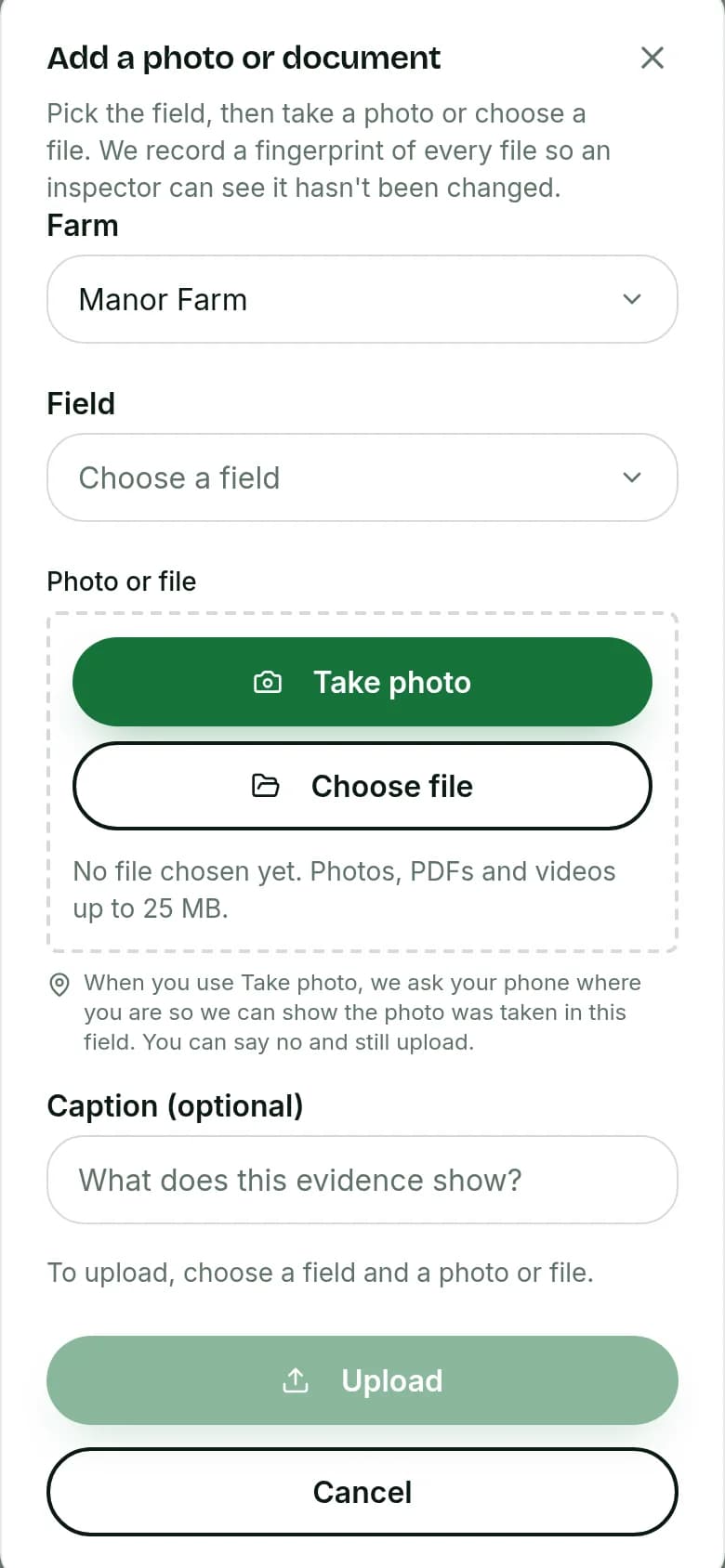
In Add a photo or document, choose the Farm and the Field the photo is for.
Demo farm in the AgriSync test environment. - 3
Take the photo and allow location
Press Take photo. Your phone asks if AgriSync can use your location. Allow it. AgriSync explains why: "When you use Take photo, we ask your phone where you are so we can show the photo was taken in this field. You can say no and still upload."
- 4
Add a caption and upload
Type a short note in Caption (optional). Say what the photo shows, such as the SFI action. Press Upload.
- 5
Check the photo's details
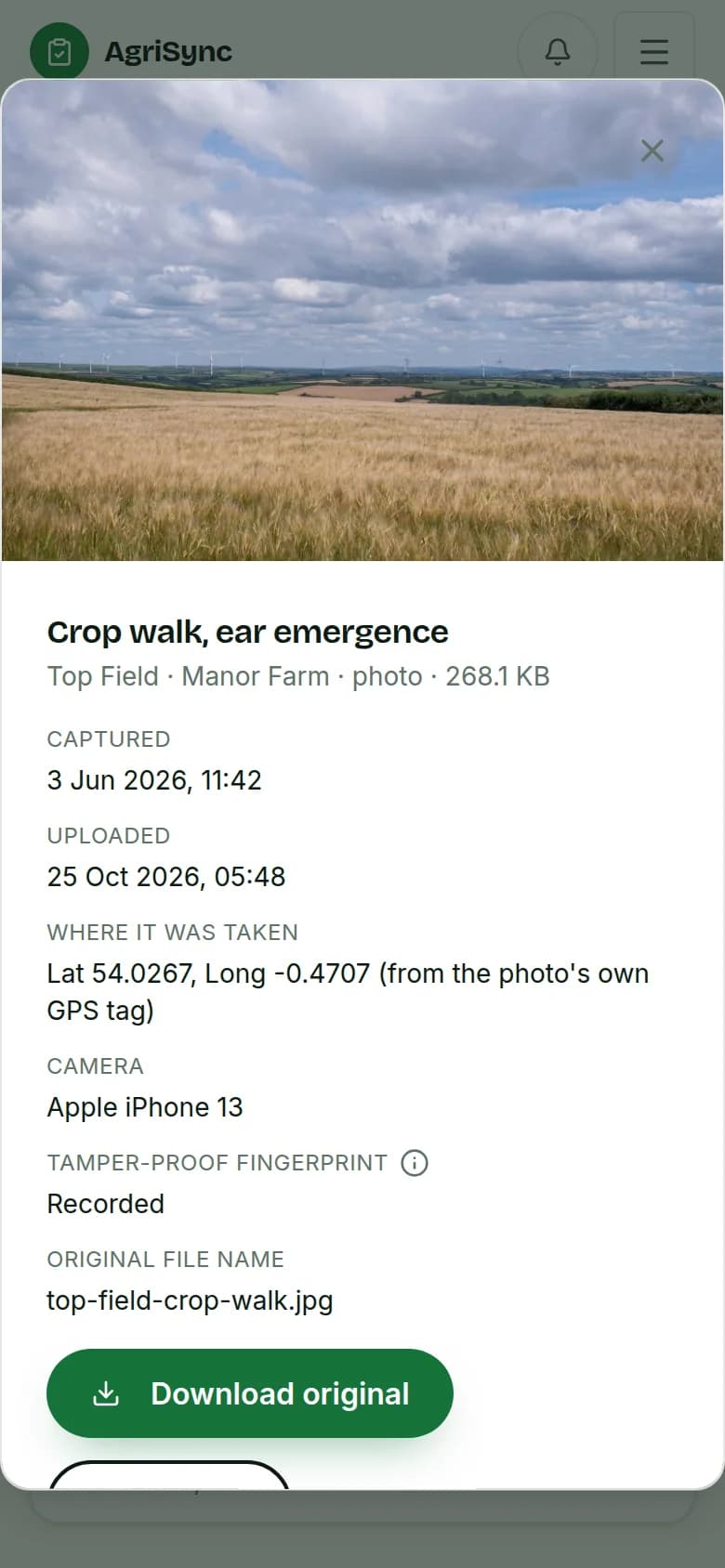
Open the photo in the Evidence vault. You can see when it was Captured and Where it was taken. You can also see that a Tamper-proof fingerprint was saved.
Demo farm in the AgriSync test environment.
How does AgriSync check where a photo was taken?
| The photo has… | What AgriSync does |
|---|---|
| Its own GPS tag (saved by the camera) | Uses it first. The details say "(from the photo's own GPS tag)". |
| No GPS tag, but you used Take photo and allowed location | Uses your phone's location at upload. Only if it is accurate to within 100 m. |
| Neither | Saves the photo, but shows "No location saved with this file". So it can't be checked against the field. |
Was the photo taken inside the field's outline? Then it passes the check Photo location matches the field on the SFI to-do list. You can upload photos, PDFs and videos up to 25 MB.
What if something goes wrong?
- "Location not shared." You said no when your phone asked. You can still upload. But the place can only be checked if the photo has its own location. To try again, allow location for AgriSync or your browser in your phone's settings.
- "…too rough to prove the field." Your phone's location wasn't exact enough. Stand where you can see the open sky. Wait a moment and try again.
- No signal in the field. In the Android app (version 1.3.5 or later), take the photo as usual. It waits on your phone with the place you took it. It uploads when you're back in signal ("photos waiting to upload", with Try now). In the web app, take the photo with your phone's camera. Upload it later with Choose file. AgriSync reads the time and place saved in the photo, if your phone keeps them. Do the details show "No location saved with this file"? Then take the photo again with Take photo while you're in the field.
- The file is too big. The limit is 25 MB.
Common questions
What is the tamper-proof fingerprint?
AgriSync saves a fingerprint of every file when you upload it. It shows an inspector the file hasn't been changed since.
Can I upload documents as well as photos?
Yes. You can upload photos, PDFs and videos up to 25 MB, such as invoices or contractor records. Each is saved with its field.
What does the RPA say about photos?
Each SFI26 action lists photos as evidence to keep. So are records of field work and invoices. Defra doesn't set rules for how to take the photos.
Sources
Every source was checked on 25 October 2026. If something has changed, tell us at info@agrisync.co.uk.
- 1.SFI26 actions (print version) (opens in a new tab), GOV.UKv2.0, June 2026 (page updated 23 September 2026)
Keep going
How-to guides
Read next
In AgriSync
Try it on your own farm
Free during early access. Start on your own, or we'll phone you and set up your fields with you.