How to set up your farm from your SBI
Step by step: enter your SBI, give permission, and AgriSync brings in your fields from the Rural Payments Agency. Then name your fields and say what's growing.
Last checked against gov.uk
- Written by
- The AgriSync team
- Published
- Reading time
- 3 minutes
For farms in England with a Rural Payments account. Works in the web app and the phone app. No SBI? You can draw your fields instead.
In short
To set up your farm from your SBI, open Set up your farm in AgriSync. Enter your SBI, tick the two permission boxes and press Agree and fetch my fields. AgriSync brings in your fields from the Rural Payments Agency (RPA). Then you check them, name them and say what's growing.
What you need
- An AgriSync account (create one free (opens in a new tab))
- Your SBI (Single Business Identifier: the 9-digit number on your Rural Payments account). See what an SBI is
- To be the account owner. Only the owner can give permission to fetch your fields
- About five minutes
Steps
- 1
Open the farm set-up
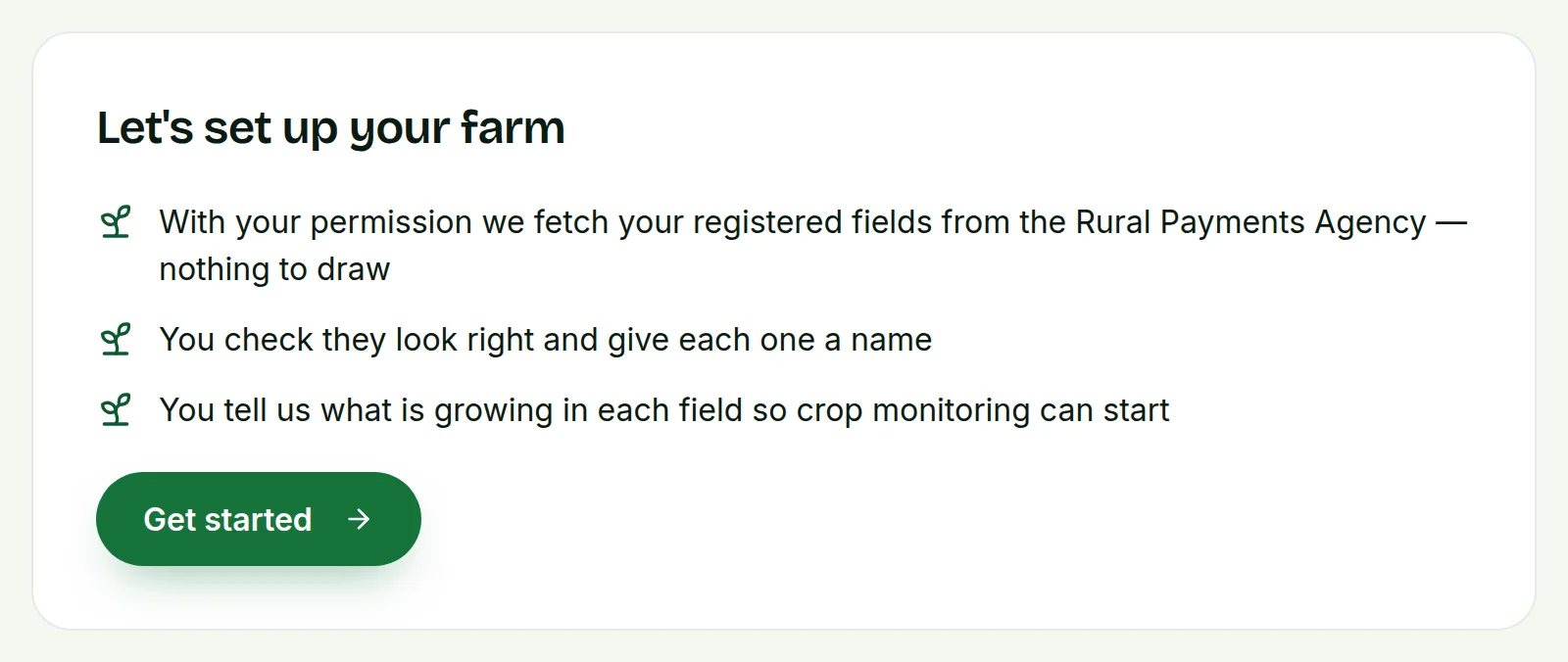
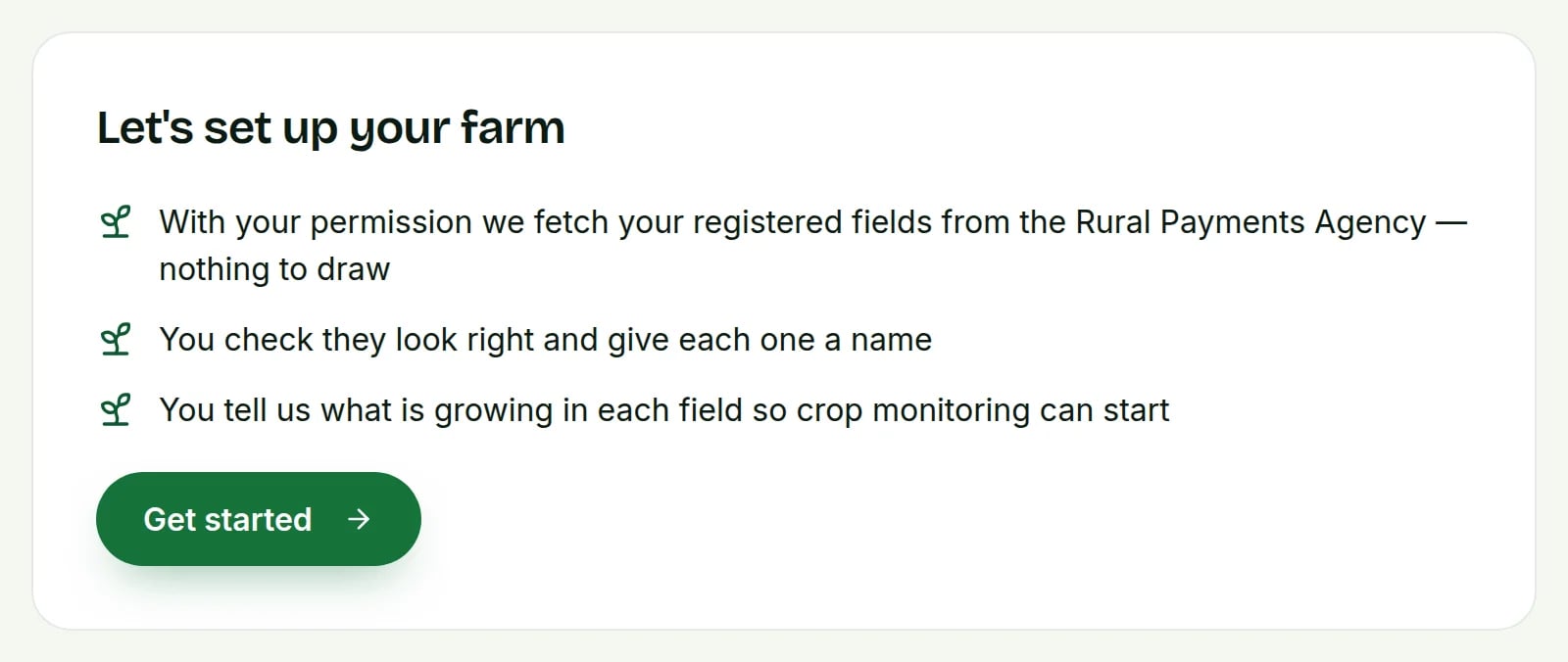
On the Dashboard, find the Set up your farm card and press Start. On Let's set up your farm, press Get started.
 Tap to see the whole screen(opens the full-size picture)
Demo farm in the AgriSync test environment. - 2
Enter your SBI
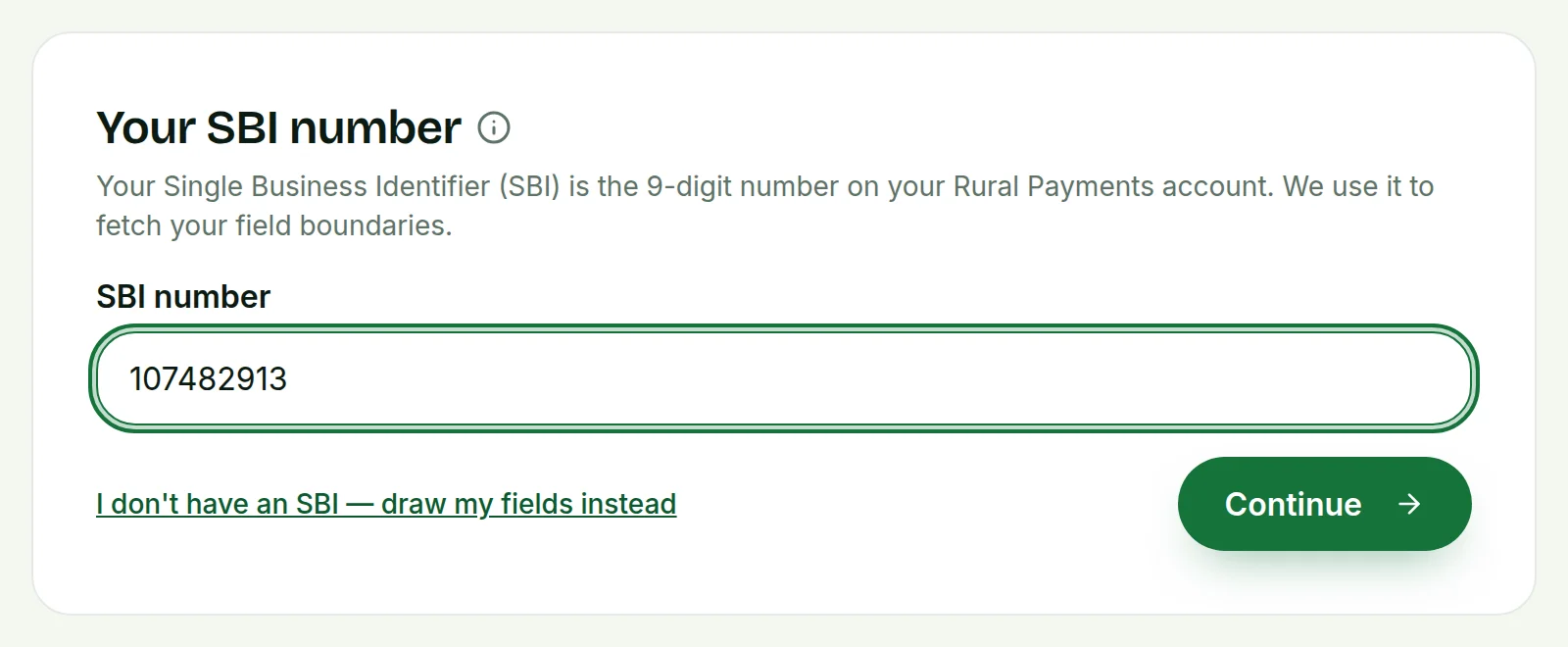
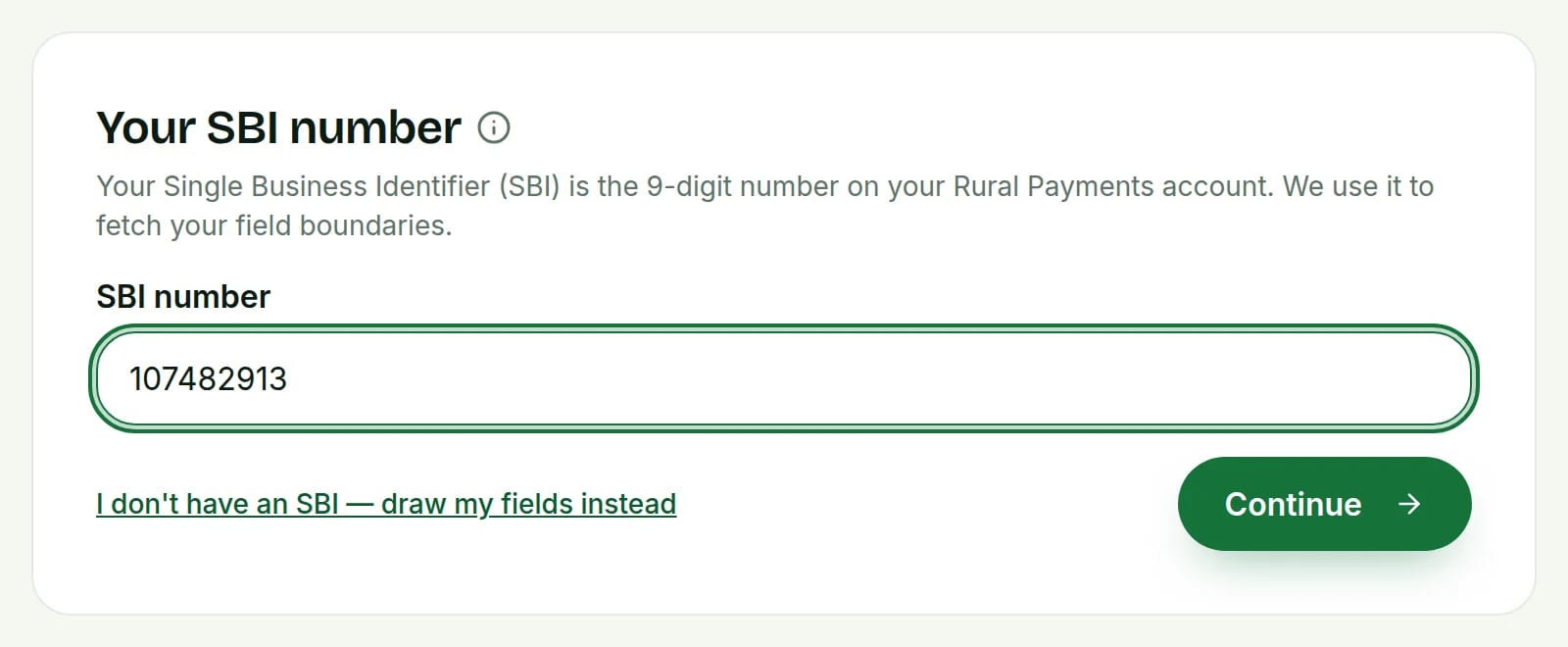
Under Your SBI number, type your number into SBI number and press Continue. If you don't have an SBI, choose I don't have an SBI — draw my fields instead.
 Tap to see the whole screen(opens the full-size picture)
Demo farm in the AgriSync test environment. - 3
Give permission
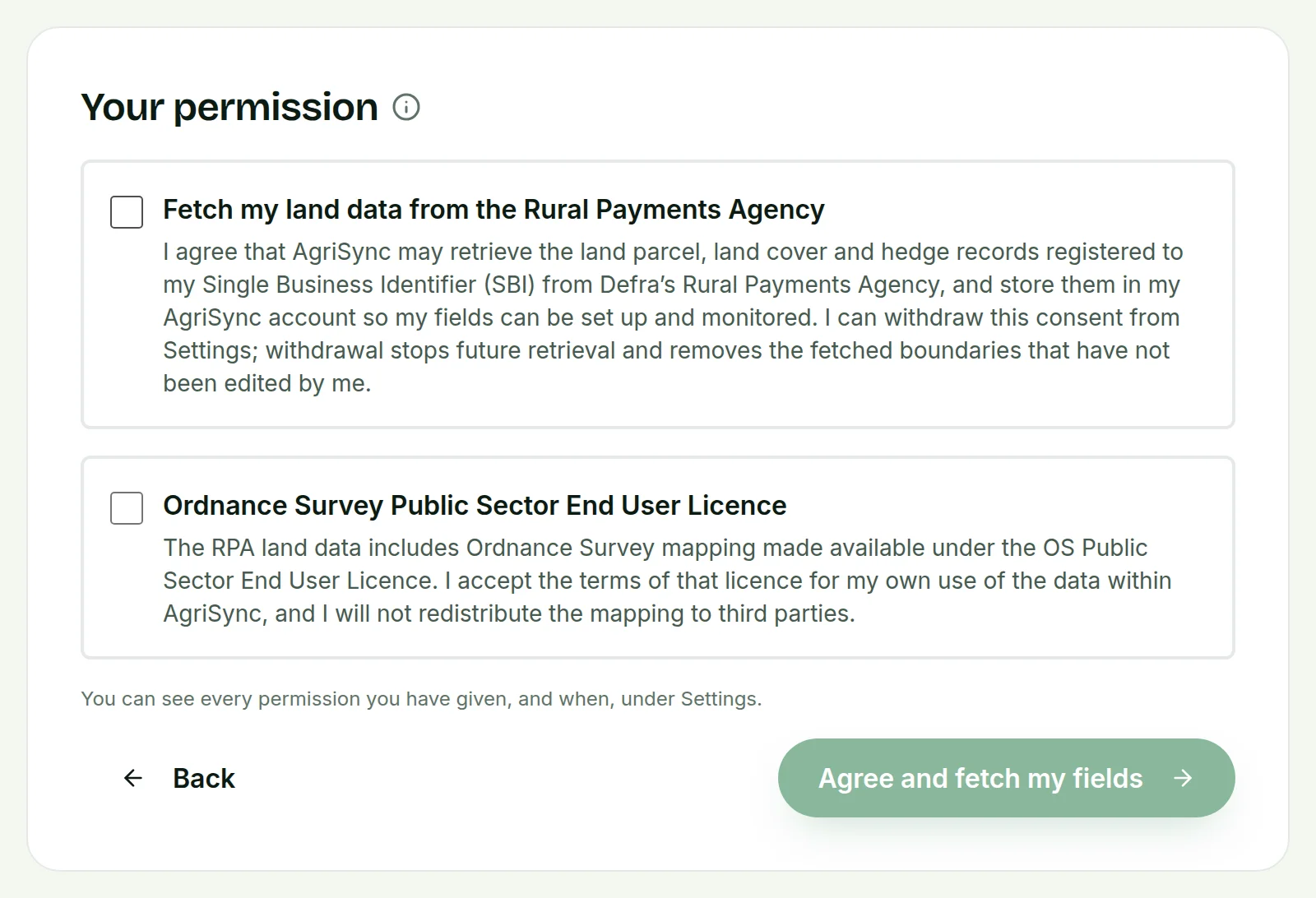
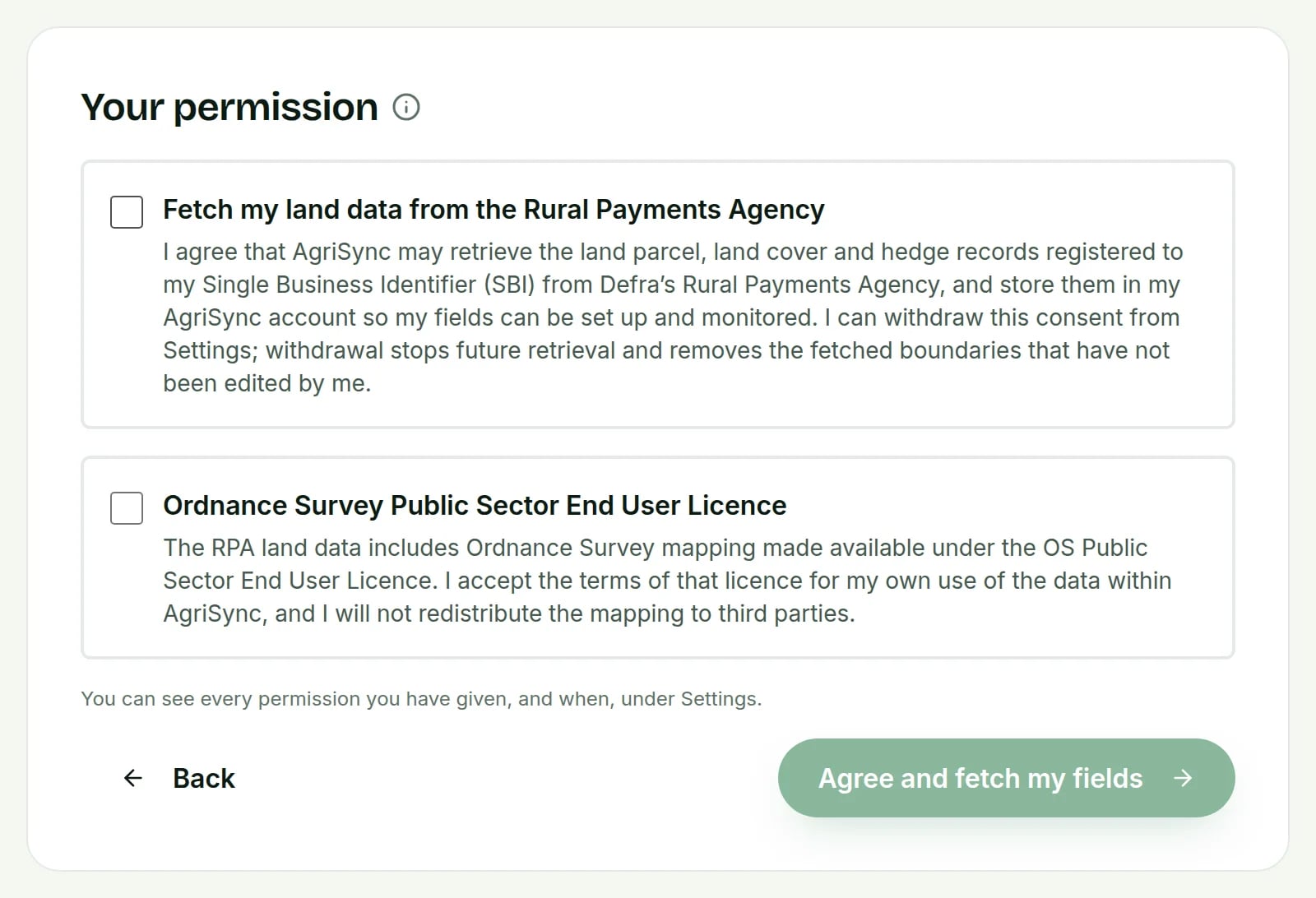
On Your permission, read both boxes and tick them: Fetch my land data from the Rural Payments Agency and Ordnance Survey Public Sector End User Licence. Then press Agree and fetch my fields.
 Tap to see the whole screen(opens the full-size picture)
Demo farm in the AgriSync test environment. - 4
Check your fields
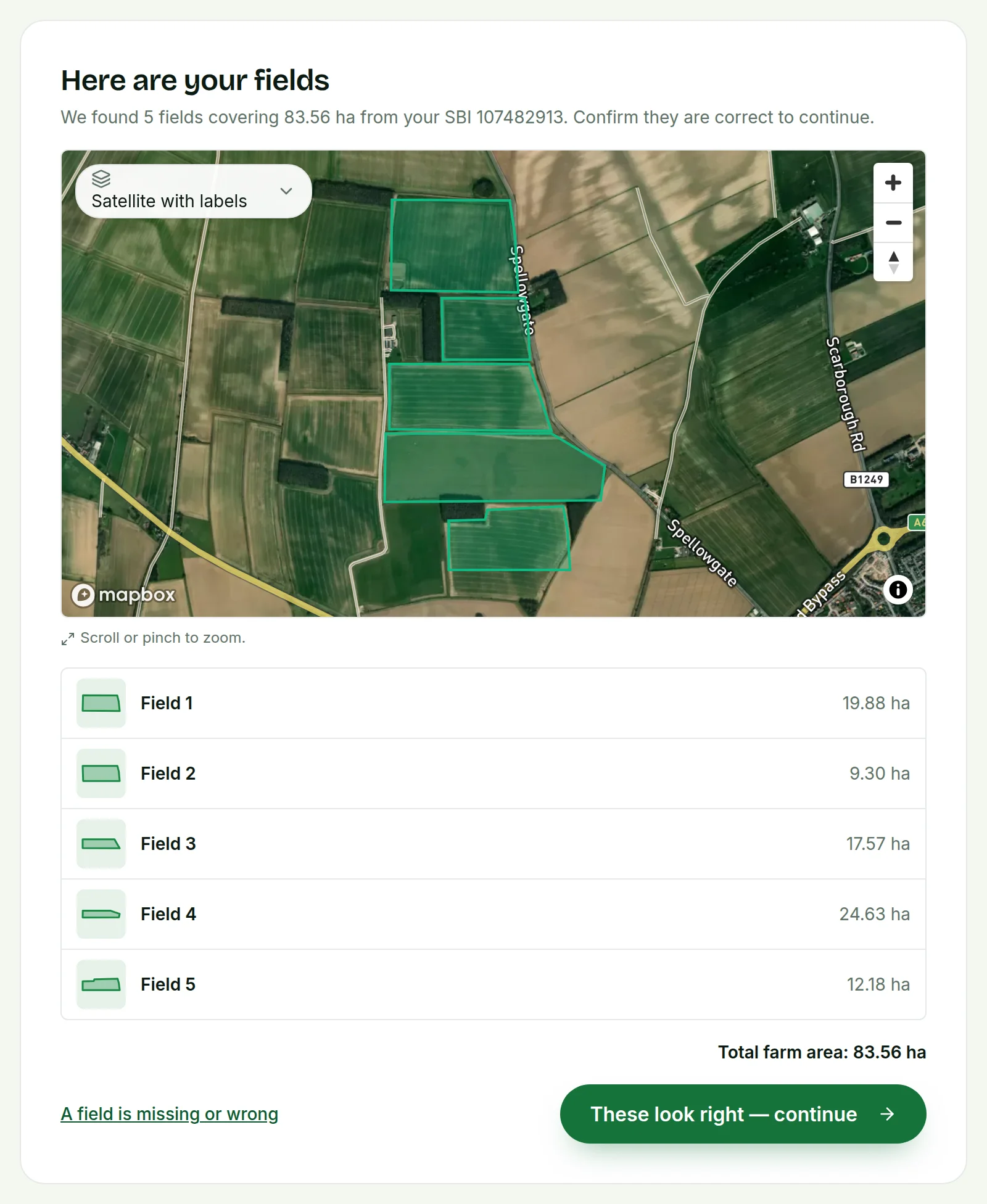
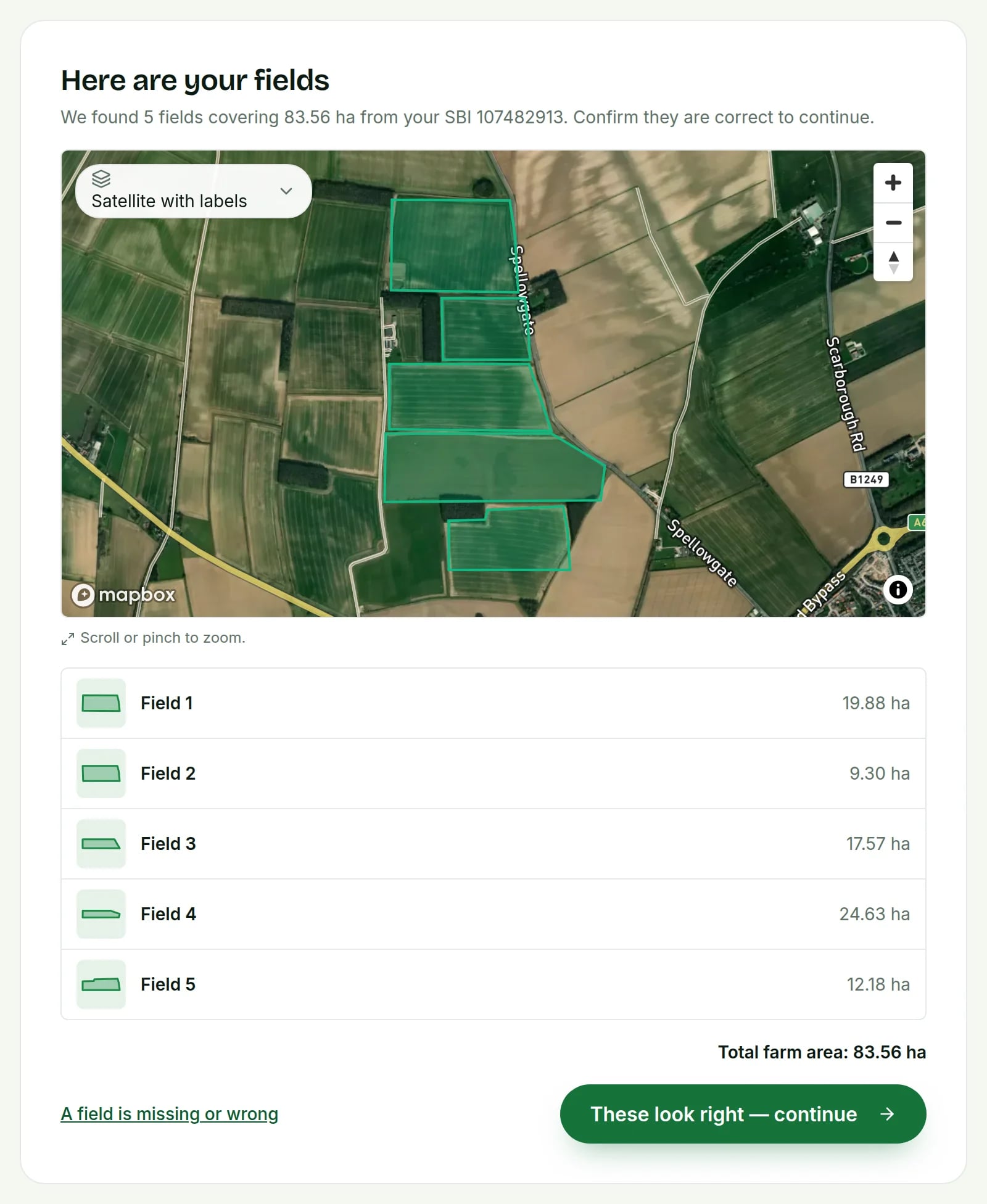
Here are your fields shows how many fields were found, the total area and a map. If they look right, press These look right — continue. If not, press A field is missing or wrong, say what's wrong in Tell us what's wrong and press Send to AgriSync.
 Tap to see the whole screen(opens the full-size picture)
Demo farm in the AgriSync test environment. - 5
Name your fields
On Name your fields, give each field the name you use on the farm, then press All done — continue.
- 6
Say what's growing
On What is growing?, choose the crop for each field and add the Planted on date if you know it. Press Save and continue, or Skip for now.
- 7
Add SFI actions and costs, if you want
SFI actions (optional) lets you record the actions you already have, or choose Not in SFI this season. Input costs (optional) can be skipped with Skip for now.
- 8
Finish
On Your farm is set up, press Go to crop monitoring to see your fields.
What does the permission cover?
“I agree that AgriSync may retrieve the land parcel, land cover and hedge records registered to my Single Business Identifier (SBI) from Defra's Rural Payments Agency, and store them in my AgriSync account so my fields can be set up and monitored. I can withdraw this consent from Settings; withdrawal stops future retrieval and removes the fetched boundaries that have not been edited by me.”
AgriSync only reads your land data. It does not change your RPA maps. It does not send anything to the RPA. The second box accepts the Ordnance Survey licence that comes with the RPA's maps. It lets you use those maps inside AgriSync.
How do I withdraw the permission?
Go to Settings, then Permissions you have given, and press Withdraw next to the permission. AgriSync stops fetching your land data. It removes the fetched field outlines you haven't redrawn. Your fields, names and crop records stay. Outlines you drew yourself stay too.
What if something goes wrong?
- "Please enter a valid 9-digit SBI number." Check the number. Not sure of it? Ask the Rural Payments helpline on 03000 200 301.
- No fields came back, or the RPA couldn't be reached. AgriSync takes you to Draw your fields, so you can carry on by hand. Or use the link to try the Rural Payments Agency again.
- A field is missing or the shape is wrong. Use A field is missing or wrong and tell us. Is your RPA map itself wrong? Ask the RPA to fix it in the Rural Payments service: Land, then Request rural land changes.
- Your areas differ slightly from your RPA paperwork. AgriSync works out each area from the field's outline. The RPA's figure is the one that counts for payments.
Common questions
Do I need an SBI to use AgriSync?
No. Choose "I don't have an SBI — draw my fields instead". Then draw each field on the map.
Can someone else on my team do the set-up?
They can help. But only the account owner can tick the permission boxes. Those boxes let AgriSync fetch your fields from the RPA.
Does AgriSync change anything in my Rural Payments account?
No. It only reads your fields, with your permission. Applications, claims and map changes still go through the Rural Payments service.
Sources
Every source was checked on 25 October 2026. If something has changed, tell us at info@agrisync.co.uk.
- 1.SFI26: scheme rules and guidance (opens in a new tab), GOV.UKv4.0, August 2026 (page updated 23 September 2026)
- 2.Register and update your details with the Rural Payments Agency (opens in a new tab), GOV.UKLast updated 2 October 2026
Keep going
How-to guides
Read next
In AgriSync
Try it on your own farm
Free during early access. Start on your own, or we'll phone you and set up your fields with you.